Bank Statement Reconciliation for Tile Traders: Import, Match, and Handle Customers Who Pay From Personal Accounts | ClayBill Blog
Ceramic Accounting & Compliance Guide
Bank Statement Reconciliation for Tile Traders: Import, Match, and Handle Customers Who Pay From Personal Accounts
CBClayBill Accounting Desk
Published on 25 September 2026· 4 min read
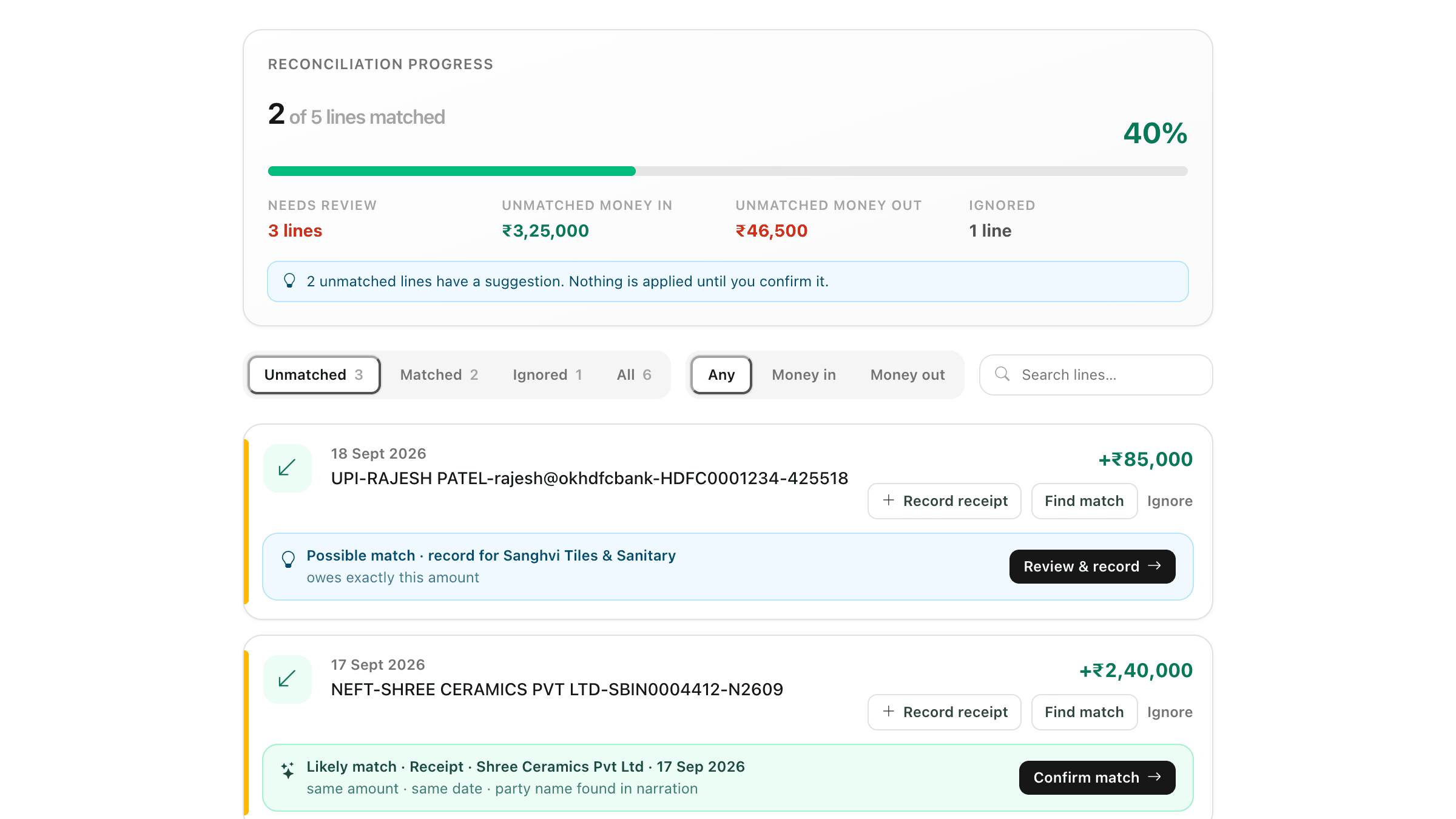
ClayBill's bank reconcile screen showing match progress, filters and suggested matches for each statement line
Every ceramic trader knows the month-end ritual: the bank statement on one side, the receipt book on the other, and a pen ticking off lines one by one. It is slow, and the lines that do not tick off are the expensive ones: a dealer's RTGS you never recorded, a supplier payment entered for the wrong amount, or money that landed from a name you have never heard of.
ClayBill's bank statement import turns that afternoon of ticking into a short review. Here is how it works and why it fits the way tile businesses actually get paid.
1. Upload the statement you already have
Download the statement from your net-banking portal and upload it against the right bank account in ClayBill. Both CSV and Excel (.xlsx) files work, and the common Indian bank layouts are recognised automatically:
✓Separate Withdrawal / Deposit columns, or separate Debit / Credit columns
✓A single Amount column with a Dr / Cr indicator
✓
Bank header lines above the column names are skipped for you
Uploaded an overlapping period by mistake? Lines you already imported are skipped, so nothing is counted twice.
2. Review suggestions, not a black box
Each unmatched line is compared with the receipts and payments you have already recorded on that bank account. If the amount matches within a week of the date, ClayBill suggests it, and shows why: same amount, same date, the party's name in the narration, or a reference number that appears in it.
Nothing is ever applied automatically. You see the suggestion, check it, and click Confirm. A wrong silent match would corrupt your books, so the decision always stays with you.
3. Money in the bank but not in your books? Record it from the line
When a dealer's payment reached the bank and nobody entered it, you no longer switch screens. Click Record receipt (for money in) or Record payment (for money out), pick the party, and ClayBill creates the entry on that bank account with the statement date and links it to the line in one step.
4. The customer who pays from a personal account
This is the one that breaks every tick-and-match routine. Your dealer owes ₹85,000, but the money arrives from "UPI-RAJESH PATEL", the owner's personal account, or a relative's. The name on the statement matches nothing in your party list.
Here is how ClayBill handles it:
1Open Record receipt on that line and search for the business party being settled.
2Parties who owe exactly that amount are listed first with an "exact amount" tag, which is usually the giveaway.
3If that party already has an unmatched receipt on the account, link it instead of creating a duplicate, even if the amount differs because it was a part payment.
4Keep Remember payer name ticked. The next time "RAJESH PATEL" appears in a narration, ClayBill suggests the business party automatically.
Saved payer names are listed at the bottom of the reconcile page, and any wrong one can be removed in a click.
5. Ignore what you do not book
Bank charges, interest and other lines you do not record in ClayBill can be marked Ignored, and restored later if you change your mind. The progress card shows how many lines are matched and how much money in and out is still unmatched, so you always know how far you are from a clean close.
A simple rhythm that works
✓Weekly: import the latest statement and clear the Unmatched tab.
✓Month-end: the Unmatched count should already be near zero, so closing takes an hour, not a weekend.
✓Before GST filing: confirm that every dealer receipt in the bank is recorded, so party outstanding balances and reminders are accurate.
Bank statement import is available from Masters → Bank & Cash Accounts on your ClayBill account. Open a bank account, choose Import statement, and clear your first batch today.