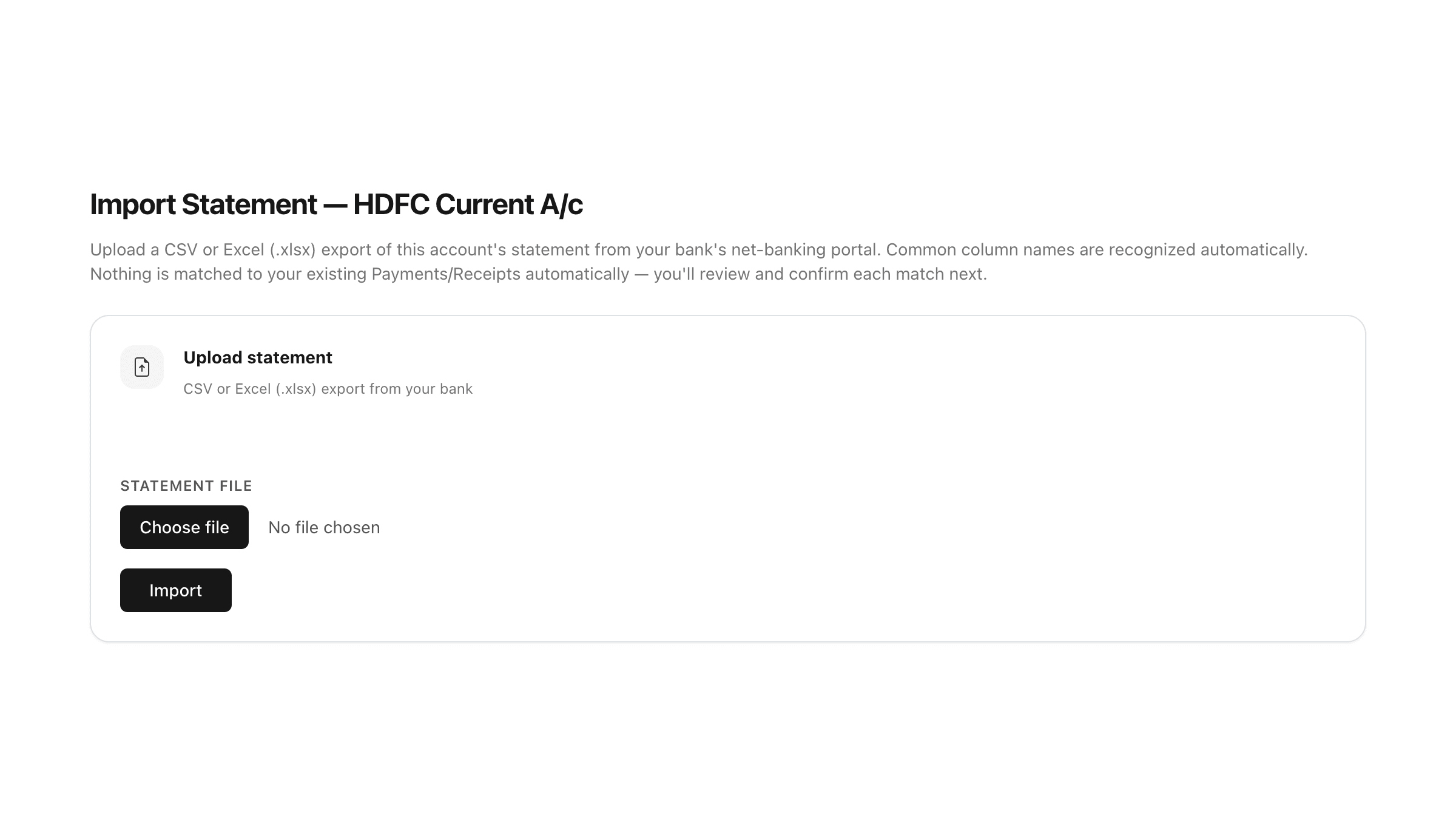
Go to Masters > Bank & Cash Accounts and click Import statement on the account the statement belongs to.
Upload the file from your bank's net-banking portal. CSV and Excel (.xlsx) files are supported. ClayBill recognises the common column layouts (Withdrawal/Deposit, Debit/Credit, or Amount with Dr/Cr) and skips any header lines above the column names.
Older .xls files are not supported — open the file in Excel, choose Save As, and pick .xlsx or CSV.
PDF statements cannot be imported. In your bank's net banking, choose the CSV or Excel download instead — most banks offer it next to the PDF option.
Importing an overlapping statement again is safe: lines you already imported are skipped and the result shows how many were ignored. After the import, click Review & match imported lines to start matching.